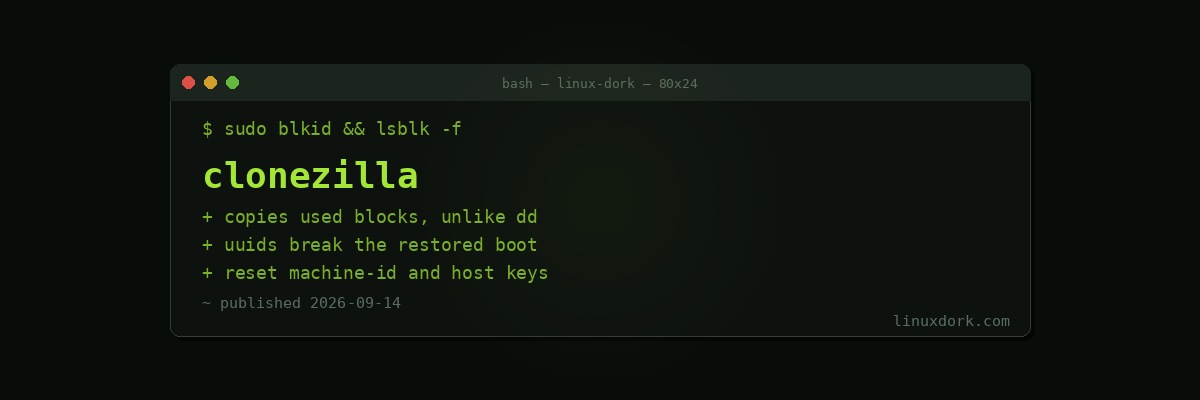
Disk Imaging with Clonezilla
Clonezilla clones disks and creates disk images. It boots from its own live media, which is the point: the filesystems it copies are unmounted and therefore consistent.
Why not dd
dd if=/dev/sda of=/dev/sdb bs=4M status=progressThis works and is slow. dd copies every block, including the 950GB of empty space on your 1TB disk.
Clonezilla understands ext4, XFS, Btrfs, NTFS, FAT, and several others well enough to read the filesystem’s allocation map and copy only blocks in use, then compress them.
A 1TB disk holding 50GB of data produces an image of roughly 20GB and takes minutes rather than hours.
Our dd guide covers where dd remains the right tool, which is mainly writing ISOs and copying filesystems Clonezilla does not understand.
The two modes
device-image creates an image file on separate storage. This is for backup: one image, restorable to many machines, stored on a NAS or an external drive.
device-device copies one disk directly to another. This is for migration: replacing a failing drive, or moving to an SSD.
The distinction matters when you are half way through the menus and cannot remember which you chose.
Imaging a disk
Boot the Clonezilla live medium, then:
device-image
  local_dev            (or ssh_server, samba_server, nfs_server)
  [select the disk holding your images]
  Beginner mode
  savedisk
  [name the image]
  [select the source disk]
Naming convention worth adopting: hostname-YYYY-MM-DD-description. In eighteen months, sda-image-2 tells you nothing.
Verify afterwards. Clonezilla offers this and it is worth the time:
-scr skip checking the restorable image <- do not use thisAn image you have not verified is a hope.
Restoring
device-image
  local_dev
  [select the disk holding your images]
  Beginner mode
  restoredisk
  [select the image]
  [select the TARGET disk]
Read the target disk selection twice. Restoring writes the entire disk with no confirmation beyond the ones Clonezilla gives you, and there is no undo. The target is destroyed.
If the machine has several similar disks, physically disconnect the ones you are not writing to. This sounds excessive and it has saved a great many people.
Restoring to a different-sized disk
Larger target: works. Clonezilla can expand the last partition to fill the space, or you can do it afterwards with growpart and the filesystem’s resize tool.
sudo growpart /dev/sda 2
sudo resize2fs /dev/sda2       # ext4
sudo xfs_growfs /              # XFS, must be mounted
Our partitioning and LVM guides cover the layout side.
Smaller target: requires preparation. Clonezilla restores the partition table as it was, so a 500GB partition fails on a 256GB disk even if it holds 40GB.
Shrink the partitions before imaging, from a live environment with the filesystem unmounted:
sudo e2fsck -f /dev/sda2
sudo resize2fs /dev/sda2 200G
# then shrink the partition itself in parted or gparted
Order matters: shrink the filesystem first, then the partition. Reversed, you truncate the filesystem and lose data.
XFS cannot be shrunk at all. The only route is backup, recreate, restore.
The UUID problem
The most common reason a restored system will not boot.
Every filesystem has a UUID, and /etc/fstab and the bootloader reference filesystems by it rather than by device name, because device names change.
A full restoredisk normally preserves UUIDs. Cloning a partition individually, or resizing during restore, can change them. The result is a system that boots to an initramfs prompt because the root filesystem UUID in the boot configuration does not exist.
# from a live environment
lsblk -f                       # actual UUIDs now
sudo blkid
Fix it by mounting and correcting:
sudo mount /dev/sda2 /mnt
sudo nano /mnt/etc/fstab       # correct the UUIDs

# reinstall the bootloader from a chroot
sudo mount --bind /dev /mnt/dev
sudo mount --bind /proc /mnt/proc
sudo mount --bind /sys /mnt/sys
sudo mount /dev/sda1 /mnt/boot/efi
sudo chroot /mnt
grub-install /dev/sda
update-grub
exit
Our chroot rescue guide covers this sequence properly, and the fstab guide covers the file.
Two further things break after a clone:
Machine ID. Two systems cloned from one image share /etc/machine-id, which confuses DHCP and systemd journaling.
sudo rm /etc/machine-id
sudo systemd-machine-id-setup
SSH host keys. Cloned machines present identical host keys, which is both a security problem and a source of warnings.
sudo rm /etc/ssh/ssh_host_*
sudo dpkg-reconfigure openssh-server
Both belong in any post-clone checklist.
Encrypted disks
Clonezilla images LUKS containers at the block level without unlocking them, which is convenient and means it cannot see inside to identify used blocks.
The consequence is that the image is the full partition size, not the used size. A 500GB encrypted partition holding 40GB produces a 500GB image, minus whatever compression achieves on encrypted data, which is essentially nothing.
To get a small image of an encrypted system, unlock the volume first and image the filesystem inside, which means the image itself is unencrypted and needs protecting.
Our LUKS guide covers the encryption side.
Multicast, for many machines
Clonezilla SE restores one image to many machines simultaneously over the network:
Server: dhcp + tftp + clonezilla-server
Clients: PXE boot, receive the multicast stream
Genuinely useful for a computer lab or a fleet deployment, and considerably more setup than the live version. For more than about ten identical machines it pays for itself.
When not to use it
Clonezilla is a point-in-time full image tool. It produces a complete image every time with no deduplication, and it needs the system offline.
For recurring backups that is the wrong shape. restic or Borg deduplicate, run incrementally against a live system, and let you restore a single file from three weeks ago without unpacking a full image.
The right uses for Clonezilla:
Before a risky upgrade or a disk swap. A known-good image you can restore in twenty minutes.
Migrating to a new drive. Clone, swap, boot.
Deploying a standard build to identical machines.
Preserving a system you are about to change irreversibly.
For anything you want running nightly and unattended, use a real backup tool. Our self-hosting guide covers the wider backup discipline, and the point about testing restores applies here too: restore an image to a spare disk once, before you need it.
Frequently Asked Questions
How is Clonezilla different from dd?
dd copies every block including empty space, so imaging a 1TB disk holding 50GB of data writes 1TB. Clonezilla understands common filesystems and copies only used blocks, then compresses them, which makes it dramatically faster and produces far smaller images.
Can I clone a disk while the system is running?
Not safely. Clonezilla boots from its own live media specifically so the target filesystems are unmounted and consistent. Imaging a mounted filesystem captures it mid-write and frequently produces an image that will not boot or has corrupt files.
Can I restore an image to a smaller disk?
Only if the used data fits and you shrink the partitions first, from a live environment, before imaging. Clonezilla in its normal mode restores the partition table as it was, so a partition larger than the target disk fails regardless of how little data it contains.
Why will my system not boot after restoring to a different disk?
Almost always UUIDs. Restoring recreates filesystems with the same UUIDs in most cases, but cloning a partition individually or resizing during restore can change them, leaving fstab and the bootloader referencing UUIDs that no longer exist. Boot a live environment and correct fstab and the GRUB configuration.
Does Clonezilla work with LUKS encrypted disks?
Yes, at the block level, where it copies the encrypted container without needing to unlock it. It cannot detect used blocks inside an encrypted volume, so it falls back to copying everything, which means the image is the full partition size rather than the used size.
Should I use Clonezilla for regular backups?
Usually not. It produces a full image each time with no deduplication and requires downtime, which suits a pre-upgrade snapshot or a machine migration rather than a nightly job. For recurring backups, restic or Borg deduplicate and run against a live system.