Killing Processes in Linux
On Linux, ending a process means sending it a signal. The most important thing to understand is that kill does not kill anything directly — it sends a signal, and what happens next depends on the signal type and how the process handles it.
Signals: the mechanism behind process termination
Every process termination method on Linux works by sending a signal. The kernel delivers the signal to the target process, which either handles it (runs custom code), ignores it, or accepts the default action (which may be termination).
The two signals that matter most for killing processes:
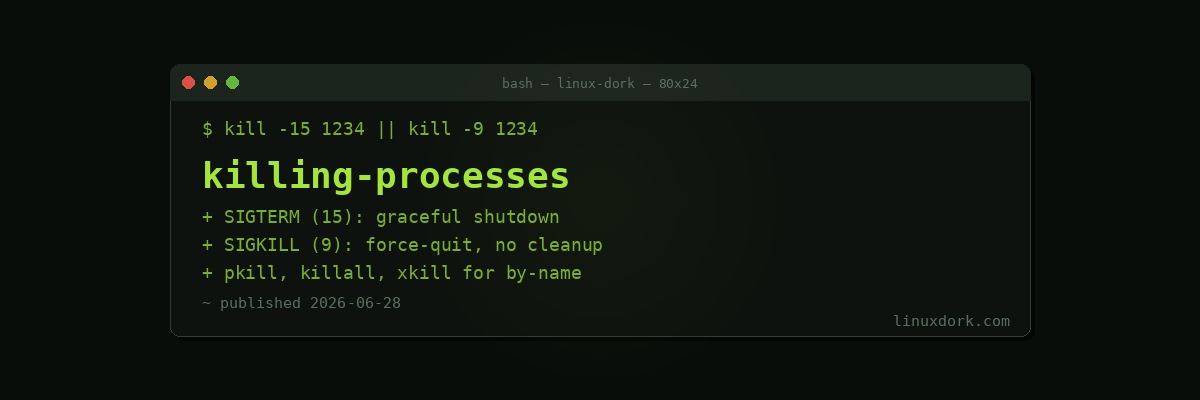
SIGTERM (15) is a polite request to terminate. A process can catch this signal and run cleanup code: flush buffers, close database connections, finish current requests, remove lock files. Most services handle SIGTERM gracefully. This is always the right first choice.
SIGKILL (9) is not a request — it is a direct kernel action. The process cannot catch, block, or ignore SIGKILL. The kernel terminates it immediately, with no opportunity for cleanup. Data in buffers may not be flushed. Temporary files may remain. Connections may be left open. Use SIGKILL only when SIGTERM has not worked.
kill: send signals by PID
The kill command sends a signal to a process identified by PID. Despite its name, it sends any signal, not just termination signals.
# Send SIGTERM (polite shutdown) -- most common
kill 12345
kill -15 12345
kill -TERM 12345

# Send SIGKILL (force terminate)
kill -9 12345
kill -KILL 12345

# Send SIGHUP (reload configuration)
kill -1 12345
kill -HUP 12345

# Send SIGSTOP (pause a process)
kill -19 12345
kill -STOP 12345

# Send SIGCONT (resume a stopped process)
kill -18 12345
kill -CONT 12345

# List all available signals
kill -l

# Send a signal to multiple processes at once
kill -15 1234 5678 9012

# Send a signal to a process group (all processes sharing a PGID)
kill -15 -1234          # negative PID targets the process group
Finding the right PID
Before you can kill a process, you need its PID.
# Find PIDs by name
pgrep nginx                        # returns matching PIDs
pgrep -l nginx                     # includes process name
pgrep -a nginx                     # includes full command line
pgrep -u alice nginx               # only alice's nginx processes

pidof nginx                        # similar to pgrep

# Find with ps and filter
ps aux | grep '[n]ginx'            # the bracket trick prevents grep matching itself
ps -C nginx -o pid=                # just the PID, no header

# Find by port
ss -tlnp | grep :80                # shows PID in the last column
lsof -i :80                        # shows PID and process name

# Find by open file
fuser /var/log/nginx/access.log    # PIDs with that file open
lsof /var/log/nginx/access.log     # more detail

# Find by socket or network connection
lsof -i tcp:443
ss -p | grep nginx
pkill: kill by name
pkill combines the lookup and signal steps. Instead of finding a PID and passing it to kill, you give pkill a name pattern.
# Send SIGTERM to all processes named nginx
pkill nginx

# Send SIGKILL
pkill -9 nginx
pkill -KILL nginx

# Match against the full command line, not just the process name
pkill -f "python3 manage.py"
pkill -f "/usr/bin/gunicorn"

# Kill only processes owned by a specific user
pkill -u alice nginx
pkill -9 -u alice

# Kill processes in a specific process group
pkill -g 1234

# Preview which processes would be killed (without killing them)
pgrep -a nginx                     # list what pkill would target

# Send SIGHUP (reload) to nginx
pkill -HUP nginx
killall: kill by name (alternative)
killall is similar to pkill but matches by exact process name rather than a pattern:
# Kill all processes with this exact name
killall nginx

# Force kill
killall -9 nginx

# Kill processes older than a certain time
killall --older-than 2h zombie-script

# Kill processes younger than a certain time
killall --younger-than 30m runaway-job

# Kill a specific user's processes with this name
killall -u alice nginx

# Interactive mode: asks for confirmation before each kill
killall -i nginx
killall is available on Linux (from the psmisc package) and BSD. On Solaris, killall kills everything on the system — a dangerous difference if you ever work on mixed environments. pkill is more portable and generally preferred.
xkill: kill a graphical window
On systems running X11, xkill lets you kill a process by clicking on its window:
# Run xkill (cursor changes to an X)
xkill

# Click on the window you want to kill
# The process owning that window receives SIGKILL
This is the fastest way to kill a frozen graphical application that is not responding to normal means.
Killing processes from htop and top
In htop: navigate to the process with arrow keys, press F9 (or k) to open the signal menu, select a signal, press Enter.
In top: press k, enter the PID when prompted, enter the signal number (default is 15).
Both are more convenient than looking up a PID and typing a kill command for one-off interactive use.
What to do when a process will not die
When kill -9 does not work, the process is in D state (uninterruptible sleep):
# Confirm the process is in D state
ps aux | awk '$8 ~ /^D/ {print}'
cat /proc/12345/status | grep State

# See what the process is waiting for
cat /proc/12345/wchan          # kernel function the process is sleeping in
sudo strace -p 12345           # trace system calls (may not attach to D-state)

# Check for hung NFS or network mounts
df -h                          # see if any filesystem is hanging
mount | grep nfs
cat /proc/mounts

# Try unmounting the hung filesystem
sudo umount -f /mnt/nfs-share
sudo umount -l /mnt/nfs-share  # lazy unmount: detaches immediately
If the D-state is caused by a hung network filesystem, lazy unmounting (-l) often frees the process. If the blockage is hardware (a failing disk, a frozen USB device), the only reliable solution is a reboot.
Killing processes belonging to a user
# Kill all processes owned by a user (systemd method)
loginctl terminate-user alice

# Kill all processes owned by a user (signal method)
pkill -u alice
pkill -9 -u alice              # if SIGTERM is not working

# Kill a user's login session
loginctl kill-session session-id
loginctl list-sessions          # find session IDs
The graceful shutdown sequence
When a service is misbehaving, follow this order:
# 1. Try the service management layer first
sudo systemctl restart nginx

# 2. Send SIGTERM and wait a few seconds
kill -15 $(pgrep nginx)
sleep 5

# 3. Check if it is still running
pgrep nginx

# 4. If still running, try SIGKILL
kill -9 $(pgrep nginx)

# 5. If still alive, it is in D state -- diagnose the I/O blockage
ps aux | grep nginx
cat /proc/$(pgrep nginx)/wchan
For any service managed by systemd, start with systemctl stop servicename. systemd sends SIGTERM, waits a configurable timeout (default 90 seconds), then sends SIGKILL if the process has not exited. This is almost always the right approach for managed services.
Signal reference
# List all signals with numbers and names
kill -l

# Most useful signals for process management
# 1   HUP     Reload configuration
# 2   INT     Interrupt (Ctrl+C equivalent)
# 3   QUIT    Quit and dump core
# 9   KILL    Force terminate (cannot be caught)
# 15  TERM    Graceful terminate (default for kill)
# 18  CONT    Continue a stopped process
# 19  STOP    Pause a process (cannot be caught)
# 20  TSTP    Pause from terminal (Ctrl+Z, can be caught)
The golden rule: always try SIGTERM first. Give the process a few seconds to clean up. Only escalate to SIGKILL if SIGTERM has no effect. And if SIGKILL does not work, the problem is not the signal — it is a blocked I/O operation that needs to be resolved at the hardware or filesystem level.
Frequently Asked Questions
What is the difference between kill -9 and kill -15?
kill -15 sends SIGTERM (signal 15), which is a polite request for the process to shut down. A well-written process catches SIGTERM, finishes current work, saves state, closes connections, and exits cleanly. kill -9 sends SIGKILL (signal 9), which the kernel enforces directly — the process cannot catch, block, or ignore it. The process is terminated immediately with no cleanup. Always try SIGTERM first. Use SIGKILL only when the process does not respond to SIGTERM, because forced termination can leave files locked, connections open, or data in an inconsistent state.
How do I kill a process by name in Linux?
Use pkill name to send SIGTERM to all processes with that name (e.g., pkill nginx). Use killall name for the same purpose on systems that have it. Both accept a -9 flag for SIGKILL: pkill -9 nginx. For more precision, pgrep name lists the matching PIDs without sending a signal, so you can review them before killing. pkill also supports matching by user (-u), full command line (-f), and process group (-g).
What do I do if kill -9 does not work?
If kill -9 does not work, the process is almost certainly in D state (uninterruptible sleep), waiting for I/O from a device or filesystem that is not responding. SIGKILL cannot reach a process in D state — the kernel will not schedule the signal delivery until the I/O wait resolves. The fix is to address the underlying I/O problem: unmount a hung network filesystem, bring back an unresponsive device, or reboot. There is no way to kill a D-state process without resolving the I/O blockage first.
How do I kill all processes owned by a user?
Use pkill -u username to send SIGTERM to all processes owned by that user, or pkill -9 -u username for immediate termination. On systemd systems, loginctl terminate-user username stops all sessions and processes for a user cleanly. To kill processes matching a command pattern owned by a specific user: pkill -u username -f “command pattern”.
What is SIGHUP used for?
SIGHUP (signal 1) originally indicated that the terminal connection was lost (hangup). Most daemons repurpose it as a reload signal: when a daemon receives SIGHUP, it re-reads its configuration file and applies changes without fully restarting. For example, kill -HUP $(pgrep nginx) reloads nginx configuration without dropping existing connections. Whether a process responds to SIGHUP this way depends on how it is written — check the documentation for the specific daemon.