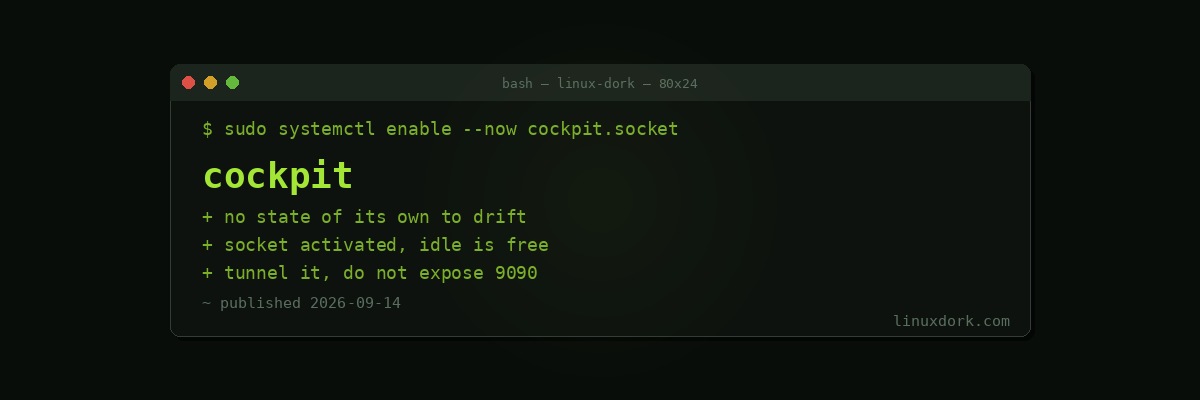
Cockpit: A Web Console for Linux Servers
Cockpit is a web interface for Linux server administration. Install it, visit port 9090, log in with a system account, and you get services, logs, storage, networking, containers, virtual machines, and a terminal.
The design decision that makes it good
Most server control panels maintain their own configuration database and write out config files from it. That produces the failure everyone who has used cPanel or Webmin recognises: you change something at the command line, the panel overwrites it on the next save, and now the two disagree.
Cockpit has no state. It calls the same interfaces you would call manually: systemd over D-Bus, NetworkManager, udisks, Podman. A service enabled in the browser is systemctl enable, because that is literally what happened.
The consequence is that you can use both freely. Nothing drifts, because there is nothing to drift.
# Debian and Ubuntu
sudo apt install cockpit

# Fedora and RHEL, frequently preinstalled
sudo dnf install cockpit

sudo systemctl enable --now cockpit.socket
Note cockpit.socket rather than cockpit.service. It is socket activated: nothing runs until a connection arrives on port 9090, so an idle server carries no cost. Our systemd guide covers socket activation.
Then https://server:9090.
What it covers
Services. Start, stop, enable, disable, and read unit files, with the journal for each unit inline. Genuinely faster than systemctl status plus journalctl -u for scanning what is failing.
Logs. A filterable journal view with priority and time range. For reading rather than for scripting, the interface is better than the command line.
Storage. Filesystems, partitions, LVM, RAID, and NFS mounts. It shows SMART status per disk and lets you create and resize things. Our LVM and RAID guides cover what it is manipulating.
Networking. Interfaces, addresses, bonds, bridges, VLANs, and firewall rules through firewalld.
Containers. Podman containers and images, with logs and resource use.
Virtual machines. Through cockpit-machines, a libvirt interface: create, start, console, snapshot. Not as complete as virt-manager, and adequate for routine work.
Terminal. A full shell in the browser, which is the escape hatch for everything the interface does not cover.
sudo apt install cockpit-podman cockpit-machines cockpit-storagedMultiple hosts
Add other servers and Cockpit connects over SSH:
Dashboard -> Add new host -> hostname, userYou switch between machines in one browser session. The remote hosts need Cockpit installed, and authentication uses your SSH credentials, so the key setup you already have applies.
For a handful of servers this is genuinely convenient. For fifty, use Ansible.
Security
Cockpit authenticates with system accounts and grants privileged access. Treat it as equivalent to SSH in sensitivity.
Do not expose port 9090 to the internet.
sudo ufw allow from 192.168.1.0/24 to any port 9090Better, do not open it at all and reach it over WireGuard or an SSH tunnel:
ssh -L 9090:localhost:9090 user@server
# then visit https://localhost:9090
That tunnel approach is worth knowing generally: it works for any web interface on a server, requires nothing open, and takes one command.
If you do need it reachable, put it behind an authenticating reverse proxy with a real certificate:
# /etc/cockpit/cockpit.conf
[WebService]
Origins = https://cockpit.example.com
ProtocolHeader = X-Forwarded-Proto
AllowUnencrypted = false

[Session]
IdleTimeout = 15
Origins must list the external URL or Cockpit rejects the proxied requests, which is the usual cause of a blank page behind a proxy.
IdleTimeout logs out inactive sessions. Worth setting.
The default certificate is self-signed, so browsers warn. Replace it:
sudo cp fullchain.pem /etc/cockpit/ws-certs.d/50-custom.cert
sudo cp privkey.pem /etc/cockpit/ws-certs.d/50-custom.key
sudo systemctl restart cockpit
Files are read in alphabetical order, and the last one wins, which is why the 50- prefix matters.
Where it fits
Good for: a homelab or small fleet, a server you administer occasionally and do not have the commands memorised for, reading logs and checking storage quickly, and giving someone limited administrative access without teaching them the command line.
Not a replacement for: configuration management at scale, anything you need scripted, or understanding the system. The built-in terminal exists because you will need it.
The honest positioning: Cockpit makes routine administration faster and does not remove the need to know what is underneath. It is at its best on the server you touch once a month, where the value is not having to remember which command shows what.
Frequently Asked Questions
What is Cockpit?
Cockpit is a web-based server management interface that runs on port 9090 and provides views for services, logs, storage, networking, containers, and virtual machines. It reads and writes the same system configuration as the command line rather than maintaining its own database.
Does Cockpit conflict with managing a server from the command line?
No, and this is its main design strength. Cockpit calls the same systemd, NetworkManager, and storage interfaces you would use manually, so changes made in the browser and the terminal are the same changes. Nothing drifts out of sync because there is no separate state to drift.
Is it safe to expose Cockpit to the internet?
Not directly. It authenticates with system accounts and grants privileged access, which makes it a high-value target, and the default self-signed certificate means browsers warn on every visit. Reach it over a VPN, or put it behind an authenticating reverse proxy with a real certificate.
Does Cockpit use resources when nobody is logged in?
Almost none. It runs as a socket-activated systemd service, meaning no process runs until someone connects to port 9090. The session ends when you log out, so an idle server carries essentially no overhead from having it installed.
Can Cockpit manage more than one server?
Yes. Add other hosts in the interface and Cockpit connects to them over SSH, letting you switch between machines from one browser session. The remote hosts need Cockpit installed, and your SSH credentials are used for authentication.
Do I still need to know the command line if I use Cockpit?
Yes. Cockpit covers common administration well and does not cover everything, and its built-in terminal exists precisely because you will need it. It is a convenience layer over the system, not a replacement for understanding it.