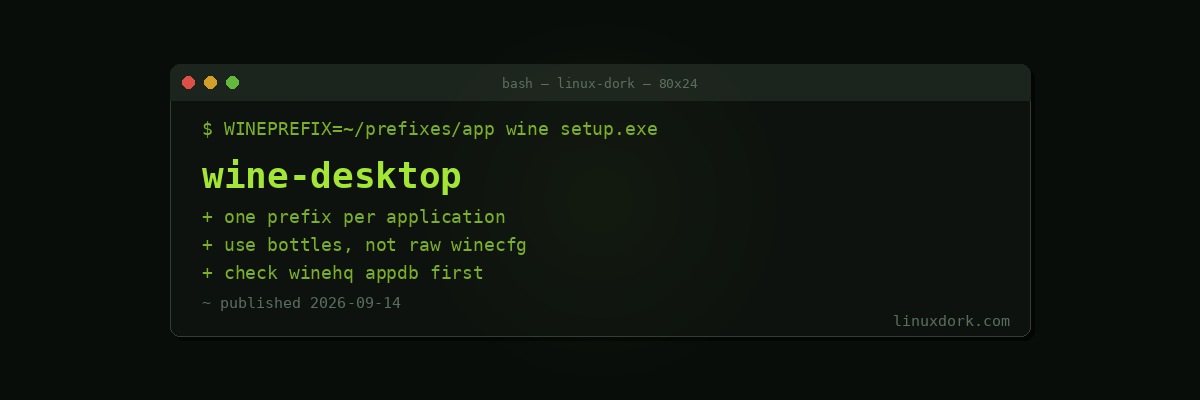
Running Windows Desktop Applications on Linux with Wine
Wine implements the Windows API on Linux. When a Windows program calls a Windows function, Wine provides its own implementation that does the equivalent thing using Linux facilities.
It is not emulation. There is no virtual CPU and no virtual machine. The application’s x86 instructions run directly on your x86 processor, and only the system calls are translated, which is why performance is close to native.
Our gaming guide covers Proton, which is Valve’s gaming-focused Wine fork. This is about ordinary desktop applications.
Prefixes
A prefix is a directory containing a fake C: drive, a registry, and installed libraries.
ls ~/.wine/
# dosdevices/  drive_c/  system.reg  user.reg  userdef.reg
~/.wine is the default. Use a separate prefix per application.
The reason is that applications need conflicting configurations. One needs a DLL override that breaks another; one needs Windows 7 compatibility while another needs Windows 10. Sharing a prefix means those settings fight, and a prefix that has accumulated a decade of workarounds is impossible to reason about.
Separate prefixes also make failure cheap: delete the directory and start again.
export WINEPREFIX=~/prefixes/myapp
export WINEARCH=win64
wineboot --init
WINEARCH is fixed at creation. A 32-bit prefix cannot be converted to 64-bit, and some older applications genuinely need win32.
Use a manager
Raw Wine is worth understanding and is a poor daily workflow.
Bottles is the current recommendation:
flatpak install flathub com.usebottles.bottlesIt creates and manages prefixes, installs dependencies, keeps per-application settings, and can snapshot a bottle before you change something. The interface makes the prefix model visible rather than hiding it, which helps when something goes wrong.
Lutris does the same with an emphasis on games, and its community install scripts handle the fiddly per-application setup automatically.
Both are doing what you would do by hand, with fewer mistakes.
Doing it by hand
export WINEPREFIX=~/prefixes/myapp
wine setup.exe
wine ~/prefixes/myapp/drive_c/Program\ Files/MyApp/myapp.exe

winecfg                # configuration interface
wineboot --restart
winecfg sets the reported Windows version, DLL overrides, drive mappings, and graphics options.
winetricks installs the runtime components applications expect:
winetricks corefonts vcrun2019 dotnet48
winetricks list-all
winetricks dxvk         # Direct3D to Vulkan translation
corefonts is worth installing in almost every prefix. Without the Microsoft core fonts, text rendering in many applications is wrong in ways that make the application look broken.
vcrun2019 or a similar Visual C++ runtime is the most common missing dependency overall.
DLL overrides
Wine provides its own implementation of most Windows DLLs. Sometimes the real one works better.
WINEDLLOVERRIDES="d3d11=n,b" wine myapp.exennative, the real Windows DLLbbuiltin, Wine’s implementationn,btry native first, fall back to builtin
Set permanently in winecfg under Libraries.
Native DLLs must come from somewhere. Copying them from a Windows installation you own is legally defensible; downloading them from a DLL site is a well-known malware vector and a bad idea.
Finding out whether something works
The WineHQ AppDB is the first stop. It rates applications Platinum (works out of the box), Gold (works with tweaks), Silver, Bronze, and Garbage, and the user notes typically list the exact winetricks components required.
Read the notes for your Wine version. A report from 2019 may describe workarounds no longer needed, or a regression since fixed.
ProtonDB covers games and is frequently useful for non-games too, since the underlying Wine is shared.
Debugging
wine myapp.exe                             # errors go to the terminal
WINEDEBUG=+all wine myapp.exe 2>debug.log  # everything, very verbose
WINEDEBUG=-all wine myapp.exe              # silence, slightly faster
WINEDEBUG=+loaddll wine myapp.exe          # what it tries to load
+loaddll is the useful one for a program that fails at startup, because it shows the exact DLL it could not find.
Running from a terminal rather than a launcher is the first debugging step, and it frequently identifies the problem immediately.
What works and what does not
Generally good: older productivity software, many specialist Windows-only tools such as CAD and engineering applications, most games through Proton, Adobe applications up to a point, and a large amount of legacy business software.
Generally poor:
Current Microsoft Office. Older versions run with effort; recent ones have poor support and activation is a persistent obstacle. The web version, a virtual machine, or LibreOffice are more practical.
Anything with kernel-level anti-cheat that has not been enabled for Linux. Both BattlEye and Easy Anti-Cheat have Proton-compatible builds, and whether they work depends on the publisher opting in. If they have not, nothing on your side changes that.
Applications needing specific hardware drivers. Wine translates the API, not a Windows kernel driver.
Deep OS integration. Shell extensions, system tray behaviour, and anything expecting Windows services.
Current Adobe Creative Cloud. The installer and licensing are the obstacle more than the applications.
When a virtual machine is the answer
If the application genuinely needs Windows, run Windows.
A KVM virtual machine gives you real Windows with complete compatibility. Our virt-manager guide covers setting one up, and GPU passthrough gives near-native graphics performance if you have a spare card.
The tradeoff is a Windows licence, memory allocated to the VM, and a less integrated experience than Wine’s windows appearing alongside your Linux ones.
For one critical application that will not cooperate with Wine, a VM is the pragmatic answer rather than a defeat. Spending a weekend fighting DLL overrides for something a VM would run correctly in twenty minutes is a poor trade.
Frequently Asked Questions
Is Wine an emulator?
No, and the name stands for Wine Is Not an Emulator. It reimplements the Windows API, translating Windows system calls into their Linux equivalents at runtime, so the application runs at close to native speed rather than having its instructions emulated.
What is a Wine prefix?
A prefix is a directory containing a fake Windows drive, a registry, and installed libraries, defaulting to ~/.wine. Using a separate prefix per application is strongly recommended because one program’s required overrides frequently break another, and a broken prefix can be deleted without affecting anything else.
Should I use Wine directly or a manager like Bottles?
Use a manager. Bottles and Lutris handle prefix creation, dependency installation, and per-application settings automatically, which removes most of the tedium. Raw Wine with winecfg and winetricks is worth understanding and is unnecessarily painful as a daily workflow.
Why does my application install but refuse to start?
Usually a missing dependency such as a Visual C++ runtime or .NET, or a required DLL override. Run the application from a terminal to see the error, and check the application’s entry in the WineHQ database, which typically lists the exact components needed.
Does Microsoft Office work under Wine?
Partially and unreliably. Older versions run with effort, and current versions have poor support with activation being a persistent obstacle. For most people the web version, a virtual machine, or LibreOffice are considerably more practical answers.
Can anti-cheat software work under Wine or Proton?
Sometimes. Both BattlEye and Easy Anti-Cheat have Proton-compatible builds, and whether they work depends entirely on whether the publisher chose to enable Linux support. Kernel-level anti-cheat that has not been enabled will not work, and no configuration on your side changes that.