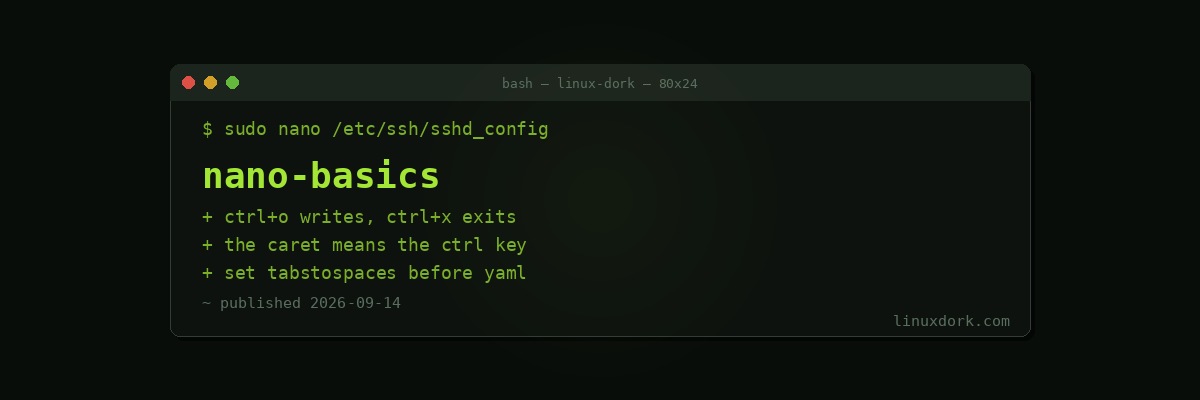
nano Editor Basics: The Terminal Editor You Can Actually Use Immediately
nano is a terminal text editor that tells you how to use it on screen. That single design decision is why it is the right recommendation for anyone who needs to edit a config file and does not want a project.
Open a file:
nano /etc/hostsThe two lines at the bottom are the shortcut menu. They are always visible, which means you never need to remember anything.
Reading the shortcut bar
^G Get Help   ^O Write Out  ^W Where Is   ^K Cut
^X Exit       ^R Read File  ^\ Replace    ^U Paste
^ means Ctrl. ^X is Ctrl+X. The letters are shown uppercase for legibility; you do not press Shift.
M- means Meta, which is Alt on most keyboards. On terminals where Alt does not work, press Escape and then the key as a separate keystroke.
That is the entire interface. There are no modes, the arrow keys move the cursor, typing inserts text, and Backspace deletes. It behaves the way a text box behaves.
The six shortcuts that cover everything
Ctrl+O writes the file out. It prompts with the current filename; press Enter to accept it.
Ctrl+X exits. If there are unsaved changes it asks first, and answering Y then Enter saves and quits.
Ctrl+W searches. Type the text and press Enter. Ctrl+W then Enter again jumps to the next match.
Ctrl+K cuts the current line. Press it repeatedly to cut consecutive lines.
Ctrl+U pastes what you cut.
Ctrl+G opens help, which lists every command.
Save, exit, search, cut, paste, help. Everything else is convenience.
The rest, briefly
Ctrl+\        search and replace
Ctrl+_        go to line number
Alt+U         undo
Alt+E         redo
Ctrl+A        start of line
Ctrl+E        end of line
Alt+A         start selecting, then move to select
Alt+6         copy selection
Ctrl+C        show current line and column
Undo is worth noting, because older nano versions did not have it and the reputation persists. Alt+U undoes, and it goes back more than one step.
Search and replace
Ctrl+\ prompts for the text to find, then the replacement, then walks through matches:
Replace this instance? [Y/N/A/C/E]Y replaces this one, N skips it, A replaces all remaining. The per-match confirmation is safer than a blind global replace, particularly in a config file.
Editing system files
The most common reason to open nano at all:
sudo nano /etc/ssh/sshd_configsudo is required to write to files owned by root. Opening without it and discovering at save time that you cannot write is a small, common irritation. nano will offer to write elsewhere, which is rarely what you want.
Two things worth doing when editing anything in /etc:
# back up first
sudo cp /etc/ssh/sshd_config /etc/ssh/sshd_config.bak

# validate after, where the service supports it
sudo sshd -t
sudo nginx -t
sudo visudo -c
An invalid sshd_config means SSH fails to restart, and if that is your only route into a remote machine, you have locked yourself out. Our SSH hardening guide covers keeping a second session open while you test, which is the habit that prevents this.
For /etc/sudoers specifically, use visudo rather than editing directly. It validates syntax before saving, and a broken sudoers file means nobody can use sudo, including to fix it.
sudo EDITOR=nano visudoMaking nano yours
Configuration lives in ~/.nanorc:
# show line numbers
set linenumbers

# tabs as spaces, 4 wide, which matters for YAML and Python
set tabsize 4
set tabstospaces

# constant cursor position display
set constantshow

# do not wrap long lines
set nowrap

# syntax highlighting
include /usr/share/nano/*.nanorc
set tabstospaces is the one to set before you edit YAML. A literal tab in a YAML file is a parse error, and it is invisible.
For a one-off:
nano -l file.txt    # line numbers
nano +42 file.txt   # open at line 42
nano -v file.txt    # view only, no accidental edits
nano +42 is useful when something reports an error at a specific line.
nano against vim
The honest comparison.
nano is usable immediately, present nearly everywhere, and its interface is on screen. It is slower for sustained editing and has no meaningful extensibility.
vim is considerably faster once learned, scriptable, and available even on minimal systems where nano is absent. It also has a real learning curve, and its modal design means that a beginner who lands in it accidentally cannot even exit. Our vim basics guide covers getting started.
The split most people settle into: nano for a quick config edit, vim for anything sustained.
The one argument for learning at least minimal vim regardless: some systems have only vi. A minimal container image, a rescue environment, a locked-down appliance. Knowing i to insert, Escape, and :wq to save and quit is a genuinely useful thirty seconds of learning.
i        insert mode
Esc      back to normal mode
:wq      write and quit
:q!      quit without saving
That is the survival kit. nano covers the rest.
Frequently Asked Questions
How do I save and exit in nano?
Press Ctrl+O to write the file out, confirm the filename with Enter, then press Ctrl+X to exit. If you press Ctrl+X with unsaved changes, nano asks whether to save and you can answer Y or N.
What does the caret symbol mean in nano shortcuts?
The caret stands for the Ctrl key, so ^X means Ctrl+X. The letter case shown does not matter, and you do not hold Shift. M- in the menus means the Meta key, which is Alt on most keyboards and Escape pressed separately on some terminals.
Why does nano add a newline at the end of my file?
POSIX defines a text file line as ending with a newline, so nano adds a trailing one to comply. This is correct behaviour and almost always harmless. If a specific file must not have it, start nano with the —nonewlines option.
How do I search and replace in nano?
Press Ctrl+W to search, or Ctrl+\ to search and replace. nano prompts for the search text, then the replacement text, then asks for each match whether to replace it, with an A option to replace all remaining matches.
Should I learn nano or vim?
Learn nano first because it is usable in thirty seconds and is present on nearly every system. Learn vim eventually because some systems have only vi, and because it is genuinely faster once learned. Using nano for quick config edits and vim for sustained work is a common and sensible split.
Can nano do syntax highlighting?
Yes. Most distributions ship syntax definition files in /usr/share/nano and enable them by default in recent versions. If highlighting is missing, add include /usr/share/nano/*.nanorc to your ~/.nanorc file.