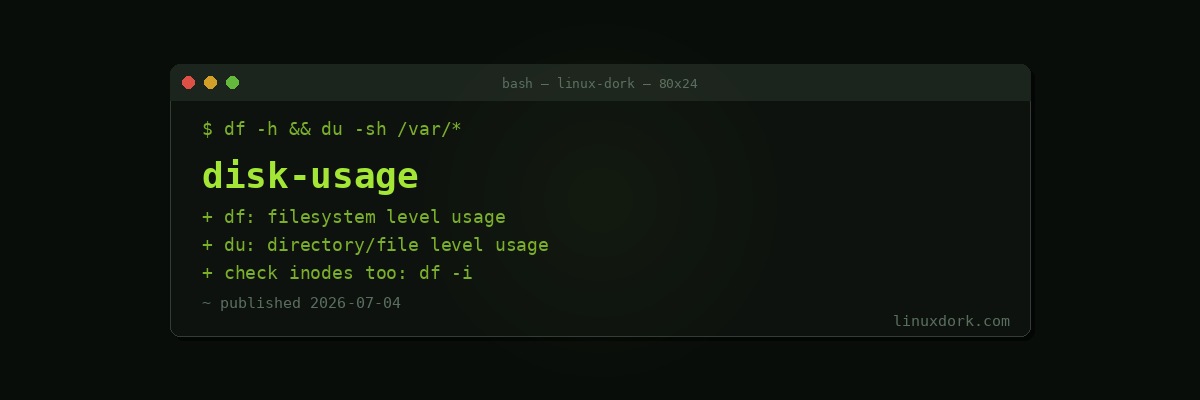
Monitoring Disk Usage on Linux
Running out of disk space tends to announce itself suddenly: a service crashes, a database refuses writes, or a package manager fails mid-install. Catching it early means knowing the difference between two commands that sound similar but answer different questions: df and du.
df: Filesystem-Level Usage
df -hFilesystem Size Used Avail Use% Mounted on
/dev/sda1 50G 32G 16G 67% /
/dev/sda2 200G 180G 10G 95% /data
tmpfs 7.8G 1.2M 7.8G 1% /rundf (disk free) reports usage per mounted filesystem: total size, used, available, and percentage used. This is the number to check first when asking “is a disk about to fill up.” The -h flag prints human-readable sizes (G, M) instead of raw block counts.
To check just one filesystem:
df -h /datadu: Directory and File-Level Usage
du -sh /var/*1.2G /var/cache
45M /var/lib
8.9G /var/logdu (disk usage) reports how much space a specific file or directory tree consumes. The -s flag summarizes rather than listing every subdirectory, and -h gives human-readable sizes. Used on a glob like /var/*, it gives a quick per-subdirectory breakdown to narrow down what’s actually large.
Finding the Biggest Offender
du -h --max-depth=1 /var | sort -rh--max-depth=1 limits recursion to one level, keeping output manageable on directories with deep trees. Piping through sort -rh orders results largest-first. Repeat with a deeper path once you’ve identified which subdirectory is the culprit.
For an interactive alternative that’s much faster to explore than repeated du commands:
sudo apt install ncdu   # or dnf install ncdu
ncdu /var
ncdu (NCurses Disk Usage) scans a directory tree once and lets you navigate it interactively, drilling into subdirectories with arrow keys, which is considerably faster than guessing paths for successive du commands.
When df and du Don’t Match
A confusing scenario: df reports a filesystem as nearly full, but summing du output for everything on it adds up to noticeably less. The most common cause is a deleted file still held open by a running process. Linux doesn’t reclaim a file’s disk space until every process with an open handle to it closes that handle, even after the file has been unlinked (deleted) from every directory listing, meaning du won’t see it at all since it no longer appears in the filesystem tree.
Find these with lsof:
sudo lsof +L1 | grep deletedThis lists open file handles pointing to files with a link count of 0 (fully deleted but still held open), typically log files a service is still writing to after a log rotation deleted the old file without the process reopening it. Restarting or signaling the responsible process to reopen its log files usually reclaims the space immediately.
The Inode Trap
A filesystem can report available space in df -h while still refusing new files with “no space left on device.” This almost always means the filesystem has run out of inodes, not data blocks. Every file and directory, regardless of size, consumes exactly one inode. A directory holding millions of small files (common with things like mail queues, session caches, or certain logging setups) can exhaust its inode allocation long before the actual data fills the disk.
Check inode usage separately:
df -iFilesystem Inodes IUsed IFree IUse% Mounted on
/dev/sda1 3276800 3276800 0 100% /If IUse% is at or near 100%, that’s the real problem, independent of how much raw space df -h shows as free. Fixing it means removing files (any files, regardless of size) to free inodes, since the fix is about file count, not disk space.
Automating Disk Space Alerts
Most monitoring stacks (Prometheus with node_exporter, Nagios, Zabbix) support alerting when filesystem usage crosses a threshold, typically 80-90%. For a lightweight approach without a full monitoring stack, a cron job checking df output against a threshold and sending a notification on breach covers the basics:
#!/bin/bash
THRESHOLD=90
df -h --output=pcent,target | tail -n +2 | while read -r pcent mount; do
  pct="${pcent%\%}"
  if [ "$pct" -ge "$THRESHOLD" ]; then
    echo "WARNING: $mount is at ${pct}%"
  fi
done
Run via cron every 15-30 minutes and pipe the output to your alerting method of choice (mail, a webhook, a messaging integration).
Frequently Asked Questions
What is the difference between df and du?
df reports disk space usage at the filesystem level, showing how much space is used and available on each mounted filesystem as a whole. du reports space usage at the directory and file level, showing how much a specific folder or file is consuming. They answer different questions: df tells you if a disk is filling up, du tells you what is filling it.
Why does df show a filesystem as full when du of everything on it adds up to less?
The most common cause is deleted-but-open files: if a process still has a file handle open on a file that has been deleted, the space is not released until the process closes the handle or exits, even though the file no longer appears in any directory listing and du will not count it. Check for this with lsof, searching for entries marked deleted. Reserved space for the root user (typically 5 percent on ext4) and filesystem overhead can also account for smaller discrepancies.
How do I find what is taking up the most space in a directory?
Run du -h —max-depth=1 /path | sort -rh to list subdirectories sorted from largest to smallest, one level deep. Increase —max-depth to go further, or use a tool like ncdu (NCurses Disk Usage) for an interactive, navigable breakdown that is much faster to explore than repeated du commands.
What does it mean when a disk shows available space but I still get a “no space left on device” error?
This almost always means the filesystem has run out of inodes, not data blocks. Every file and directory consumes one inode regardless of its size, so a filesystem with millions of tiny files can exhaust its inode allocation while still showing plenty of free space in gigabytes. Check inode usage with df -i; if percent used is at or near 100 percent there, that is the actual problem, not the data usage shown by a regular df.
How do I check disk usage for a specific mounted filesystem only?
Run df -h /path/to/mountpoint to see usage for just the filesystem containing that path. Without an argument, df lists every mounted filesystem, which can be noisy on systems with many mounts, containers, or network shares. Passing a specific path narrows the output to the one filesystem you care about.
How can I monitor disk usage automatically before a filesystem fills up?
Most monitoring systems (Prometheus node_exporter, Nagios, Zabbix, and similar) can alert on filesystem usage percentage crossing a threshold, typically 80 to 90 percent. For a lightweight manual approach, a cron job running df -h and piping the output through a threshold check in a shell script, emailing or messaging on breach, covers basic cases without needing a full monitoring stack.