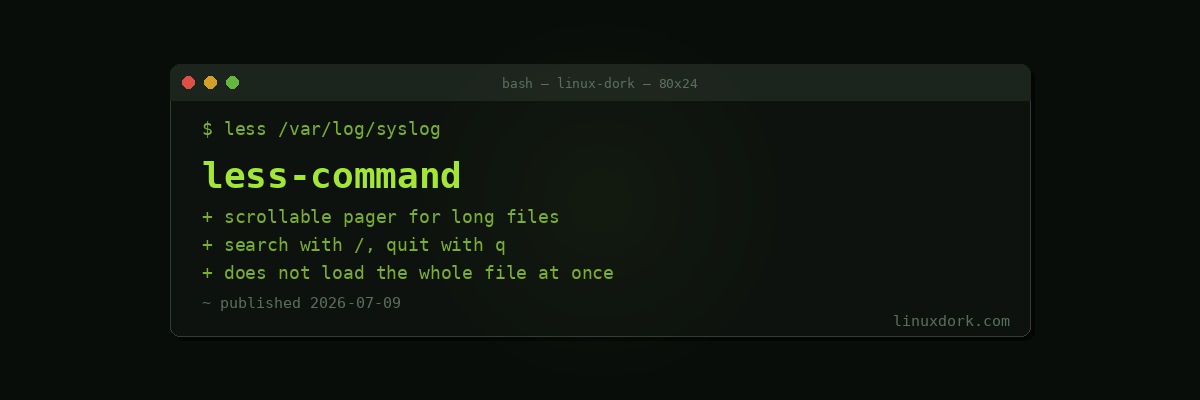
less Command Explained
less is the standard tool for viewing files that are too long to usefully display all at once with cat. It is one of the first genuinely interactive command-line tools most people learn, and one of the first to teach the frustrating lesson that not every terminal program tells you how to quit.
Basic usage
less /var/log/syslog
less large-report.txt
Running less on a file opens it in an interactive, full-screen view, showing the beginning of the file and waiting for you to navigate. Nothing else happens until you press a key.
Navigating inside less
Space or f     next page
b              previous page
Down arrow / j scroll down one line
Up arrow / k   scroll up one line
g              jump to the very beginning of the file
G              jump to the very end of the file
q              quit and return to the shell
Unlike cat, which prints everything and returns control to your shell immediately, less keeps you inside its own interface until you explicitly quit, which is why pressing q is the single most important thing to know about it.
Searching inside a file
/error         search forward for "error"
n              jump to the next match
N              jump to the previous match
?warning       search backward for "warning"
This is one of less’s biggest advantages over cat: you can search for text directly inside the pager, jump between matches, and see them highlighted in context, all without leaving the tool or piping through grep separately.
# A common combined pattern: open a log and immediately search
less +/ERROR /var/log/app.log
# opens the file with the search for "ERROR" already active
less vs more
more file.txt     # older pager, forward-only on many systems
less file.txt      # modern pager, scrolls both directions, faster search
more predates less and, on many systems, only lets you scroll forward through a file, sometimes not even supporting backward navigation at all. less was written as a more capable replacement, hence the tongue-in-cheek name (“less is more”), adding backward scrolling, real-time search, and better performance on very large files. Most people today use less exclusively, though more still exists on virtually every system for compatibility and muscle memory from older scripts and documentation.
Why less handles huge files so much better than cat
cat massive-10gb-log.txt
# reads and prints the ENTIRE file, which can take a long
# time and floods the terminal with far more output than
# anyone could usefully read as it scrolls past

less massive-10gb-log.txt
# opens almost instantly, since it only reads enough
# to fill the current screen, loading more as you scroll
less does not need to read an entire file before showing you the first screen. It reads incrementally, which is why opening a multi-gigabyte log file in less feels instant while cat-ing the same file can take a noticeable amount of time and produce an overwhelming, unreadable wall of scrolling text.
Following a live, growing file
Shift+F        enter follow mode (behaves like tail -f)
Ctrl+C         stop following, return to normal browsing
less can also watch a file for new content in real time, similar to tail -f, without needing a separate command. This is useful when you want the ability to both follow live log output and, at any moment, stop and scroll back to search through what has already accumulated, all inside the same session.
Viewing piped output with less
ps aux | less
grep -r "TODO" . | less
journalctl | less
less reads just as well from a pipe as it does from a file directly, which makes it a common final step in a command chain whenever the output is long enough that scrolling through a plain terminal buffer would be impractical.
Useful less options at launch
less -N file.txt      # show line numbers
less -S file.txt      # do not wrap long lines; scroll horizontally instead
less -i file.txt       # case-insensitive search by default
-S is particularly useful for viewing files with very long lines, such as certain log formats or minified data files, where wrapping would otherwise scatter a single logical line across many visual lines on screen.
Frequently Asked Questions
What does the less command do?
less is a pager: a program that displays file contents one screen at a time instead of dumping everything at once like cat does. It lets you scroll forward and backward through a file, search for text, and jump to specific lines, all without loading the entire file into memory upfront.
How do I search for text inside less?
Press / followed by your search term and Enter to search forward through the file. Press n to jump to the next match, and N to jump to the previous match. Press ? instead of / to search backward from your current position instead of forward.
What is the difference between less and more?
more is an older, simpler pager that can only scroll forward through a file, and on some systems cannot scroll backward at all. less is a more capable successor (the name is a joking reference to “less is more”) that supports scrolling in both directions, real-time search, and does not need to read the entire file before displaying the first screen, which makes it noticeably faster to open on very large files.
How do I exit less?
Press q to quit and return to your shell prompt. This is one of the most frequently searched “how do I” questions for new Linux users, since less gives no on-screen hint about how to leave once you are inside it.
Can I follow a growing file in less, similar to tail -f?
Yes, press Shift+F while inside less to enter follow mode, which behaves like tail -f, showing new lines as they are appended to the file in real time. Press Ctrl+C to stop following and return to normal browsing within the same less session, rather than needing to quit and reopen the file.
Why does less open large files instantly while cat seems to hang?
less does not read the entire file into memory before displaying anything. It reads only enough to fill the current screen, plus a bit more for smooth scrolling, and reads further sections on demand as you scroll. cat, by contrast, reads and prints the entire file in one pass, which for a very large file (multi-gigabyte logs, for instance) can take a noticeable amount of time and flood the terminal with more output than can be usefully read.