fsck: Checking and Repairing Linux Filesystems
fsck checks a filesystem’s metadata for inconsistencies and repairs them. There is one rule that matters more than everything else about it.
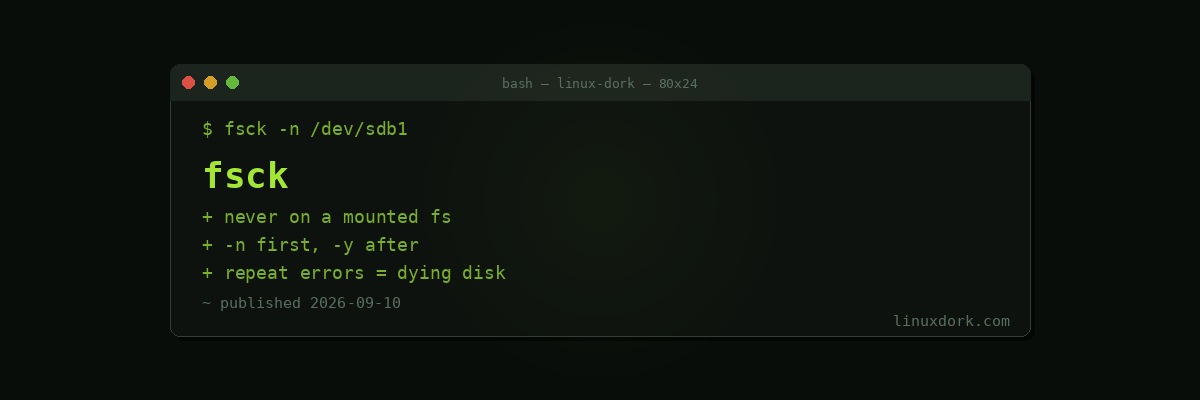
Never run it on a mounted filesystem
The kernel is modifying the filesystem while it is mounted. fsck reading it sees a moving target, and any repair it writes can conflict with in-flight changes.
Running fsck on a mounted filesystem can corrupt a healthy one. Modern versions refuse by default, and the -f flag will override that refusal, which is a thing you should essentially never do.
umount /dev/sdb1
sudo fsck /dev/sdb1
Checking the root filesystem
You cannot unmount the filesystem you are running from. Two options.
Schedule a check at the next boot:
sudo touch /forcefsck
sudo reboot
Or as a kernel parameter, which is more reliable on systemd systems:
fsck.mode=force fsck.repair=yesAdd it in the GRUB menu for one boot by pressing e, or in /etc/default/grub to persist.
Or boot from a live USB and check it from there, which is the approach when the system will not boot at all. Our chroot rescue guide covers the surrounding procedure.
Common invocations
sudo fsck -n /dev/sdb1        # check only, answer no to everything
sudo fsck -y /dev/sdb1        # answer yes to all repairs
sudo fsck -f /dev/sdb1        # force even if marked clean
sudo fsck -C /dev/sdb1        # progress bar
sudo fsck -A -y               # every filesystem in fstab
Start with -n. It reports what it would change without changing anything, which tells you the scale of the problem before you commit to a repair.
-y is what you use for the actual repair, because reviewing thousands of individual prompts is not practical.
Image first, if the data matters
Repairs are destructive and there is no undo.
sudo dd if=/dev/sdb1 of=/backup/sdb1.img bs=4M status=progress conv=noerror,syncFor a failing disk, ddrescue is far better than dd because it retries and tracks bad sectors intelligently:
sudo ddrescue -d -r3 /dev/sdb1 /backup/sdb1.img /backup/rescue.logThen run fsck against the image rather than the disk. If it goes badly you still have the original.
Per-filesystem differences
ext4 uses e2fsck, which fsck dispatches to. This is what most of this article describes.
XFS uses xfs_repair, and fsck.xfs is deliberately a no-op so boot checks skip it. XFS replays its journal on mount, resolving most inconsistencies without intervention.
sudo xfs_repair /dev/sdb1
sudo xfs_repair -n /dev/sdb1     # check only
Btrfs has btrfs check, and the project is explicit that --repair is dangerous and should be a last resort after consulting the mailing list. Use btrfs scrub on a mounted filesystem for routine verification instead.
ZFS has no fsck at all. zpool scrub verifies checksums and repairs from redundancy on a live pool.
Our ext4, Btrfs, and XFS comparison covers the differences more broadly.
lost+found
After a repair you may find files here with numeric names.
These are files whose data survived but whose directory entry did not, so fsck recovered the contents and had nowhere to put the name. Identifying them means looking:
sudo file /lost+found/*
sudo head -c 200 /lost+found/#12345
When it is really the disk
Filesystem corruption on healthy hardware is uncommon outside of unclean shutdowns and power loss.
Repeated corruption is a strong signal of failing storage, and repairing metadata onto a dying drive is treating a symptom.
sudo smartctl -a /dev/sdb
sudo dmesg | grep -iE 'i/o error|ata.*failed|medium error'
Our smartctl guide covers reading the attributes that actually predict failure, and dmesg is where the kernel reports the read errors.
If SMART looks bad, copy the data off before doing anything else. Repair can wait; a dying disk cannot.
Frequently Asked Questions
Why must the filesystem be unmounted before fsck?
Because the kernel is actively changing the filesystem while it is mounted, so fsck is reading a moving target and any repair it makes can be overwritten or can conflict with in-flight changes. Running it on a mounted filesystem can corrupt an otherwise healthy one.
How do I check the root filesystem?
You cannot unmount it while running from it, so either boot from a live USB and check it from there, or schedule a check at the next boot by creating a forcefsck file or setting the fsck.mode kernel parameter.
What does lost+found contain?
Files whose directory entries were damaged, so fsck recovered the data but not the name. They appear with numeric names based on their inode, and identifying them means inspecting the contents.
Does XFS use fsck?
Not in the same way. XFS uses xfs_repair, and fsck.xfs deliberately does nothing so that boot-time checks skip it. XFS replays its journal on mount, so most inconsistencies resolve without intervention.
Should I answer yes to every repair prompt?
Usually yes with -y, since manually reviewing thousands of prompts is impractical. Image the device first if the data matters, because repairs are destructive and there is no undo once fsck has rewritten metadata.
Does repeated corruption mean a failing disk?
Very often. Filesystem corruption on healthy hardware is rare outside of unclean shutdowns. If fsck keeps finding errors, check SMART attributes before repairing again, because you may be repairing metadata onto a dying drive.