curl and wget Explained
Downloading a file, checking whether a service is responding, or scripting against a web API from the command line almost always comes down to one of two tools: curl or wget. Both are installed by default on most Linux systems, and both do broadly similar things, but they are built around different primary use cases, which shows up in how each is typically used.
curl vs wget: the short version
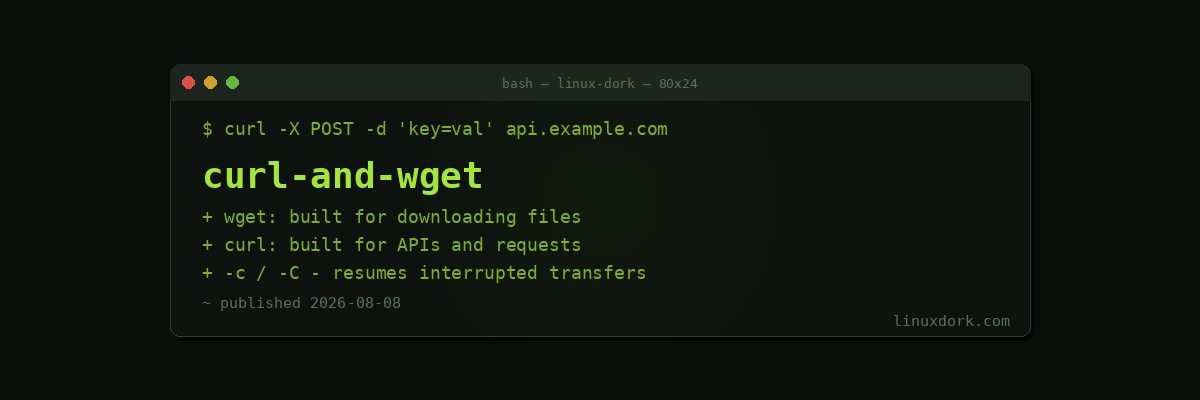
wget is purpose-built for downloading, with strong built-in support for resuming interrupted downloads, recursively downloading entire directory trees or mirroring a website, and simple non-interactive operation well suited to scripts and cron jobs. curl is a more general-purpose data transfer tool, supporting a much wider range of protocols beyond HTTP, and giving far finer control over request headers, methods, authentication, and how the response is handled, which is why it is the standard tool for scripting against web APIs.
For a straightforward “download this file,” either works fine. For “make a specific kind of HTTP request and inspect the response,” curl is the better-suited tool.
Downloading a file
curl -O https://example.com/file.zip     # save using the filename from the URL
curl -o myfile.zip https://example.com/file.zip   # save with a custom filename

wget https://example.com/file.zip         # save using the filename from the URL by default
wget -O myfile.zip https://example.com/file.zip   # save with a custom filename
Without -O or -o, curl writes the downloaded content to standard output rather than saving it, which is intentional and useful when piping the output into another command, but surprises people expecting a file to appear.
Resuming an interrupted download
wget -c https://example.com/largefile.iso
curl -C - -o largefile.iso https://example.com/largefile.iso
Both resume a partially downloaded file rather than restarting from the beginning, provided the server supports range requests, which most servers do for static files. The partial file must already exist locally under the exact filename being written to; if it does not, both tools simply start a fresh download instead.
Following redirects
curl -L https://example.com/shortlinkBy default, curl does not follow HTTP redirects, it just shows you the redirect response itself. -L tells it to follow the redirect chain to the final destination, which is necessary for anything using URL shorteners or redirect-based routing. wget follows redirects by default with no extra flag needed.
Making API requests with curl
# GET request (the default)
curl https://api.example.com/users

# POST with form-encoded data
curl -X POST -d "name=Ada&role=admin" https://api.example.com/users

# POST with a JSON body
curl -X POST -H "Content-Type: application/json" \
  -d '{"name":"Ada","role":"admin"}' \
  https://api.example.com/users

# Send a custom header, e.g. an auth token
curl -H "Authorization: Bearer YOUR_TOKEN" https://api.example.com/protected
-X sets the HTTP method explicitly. -d sends data as the request body, and using -d alone (without -X) automatically switches the request to POST, since a plain GET request does not normally carry a body. -H adds a custom header, usable multiple times in one command for multiple headers.
Inspecting responses
curl -i https://example.com          # show response headers plus the body
curl -I https://example.com          # HEAD request: headers only, no body downloaded
curl -v https://example.com          # verbose: show the full request/response exchange
curl -s -o /dev/null -w "%{http_code}\n" https://example.com   # print just the status code
That last example is a common pattern in health-check scripts: -s silences the progress meter, -o /dev/null discards the actual body, and -w prints a custom format string, here just the HTTP status code, giving a one-line answer to “is this URL responding, and with what status.”
Downloading an entire site or directory with wget
wget -r -np -k https://example.com/docs/-r enables recursive downloading, following links to fetch an entire directory tree. -np (no parent) prevents wget from following links upward, out of the starting directory. -k rewrites downloaded links to work for local, offline browsing. This kind of recursive mirroring is a wget specialty that curl does not attempt to replicate directly.
Handling TLS certificate issues
curl -k https://self-signed.example.com     # skip certificate verification entirely (testing only)
curl --cacert /path/to/ca.pem https://internal.example.com   # trust a specific CA certificate
-k disables certificate verification entirely and should never be used against anything you actually care about the security of, it defeats the point of TLS. For internal services with a self-signed or private CA certificate, --cacert is the correct approach: it tells curl to trust that specific certificate rather than disabling verification altogether.
Frequently Asked Questions
What is the difference between curl and wget?
wget is purpose-built for downloading files and entire websites, with strong built-in support for recursive downloads, resuming interrupted transfers, and mirroring a site’s directory structure. curl is a more general-purpose tool for transferring data with URLs, supporting a much wider range of protocols and giving finer control over requests, headers, authentication, and response handling, which is why it is the more common choice for interacting with web APIs. For simply downloading a file, either works; for scripting against an API or needing precise control over an HTTP request, curl is the more capable tool.
How do I download a file and save it with a specific name?
With curl, use -o followed by the desired filename: curl -o myfile.zip https://example.com/file.zip. Without -o, curl writes the downloaded content to standard output rather than a file, which is useful for piping into another command but not for saving a file directly. With wget, the file is saved using the name from the URL by default, and -O followed by a filename overrides that: wget -O myfile.zip https://example.com/file.zip.
How do I resume an interrupted download?
With wget, add -c (continue): wget -c https://example.com/largefile.iso resumes a partially downloaded file from where it left off, rather than starting over, provided the server supports range requests (most do for static files). With curl, the equivalent is -C -, where the trailing dash tells curl to automatically detect the correct resume offset: curl -C - -o largefile.iso https://example.com/largefile.iso. Both require the partial file to already exist locally with the exact name being written to.
How do I send a POST request with curl?
Use -X POST to specify the method, combined with -d to send data in the request body: curl -X POST -d “key1=value1&key2=value2” https://example.com/api. For sending JSON, pair -d with a Content-Type header: curl -X POST -H “Content-Type: application/json” -d ’{“key”:“value”}’ https://example.com/api. curl also automatically switches to a POST request whenever -d is used without an explicit -X, since sending a request body implies POST by default, though specifying -X POST explicitly makes the intent clearer to anyone reading the command later.
How do I see the response headers, not just the body?
Add -i to curl to include the response headers above the body in the output: curl -i https://example.com. Use -I (capital i) instead to send a HEAD request and see only the headers, without downloading the body at all, useful for quickly checking a URL’s status code or content type without transferring the full response. wget’s equivalent for viewing headers is less direct, typically requiring —server-response combined with discarding the actual downloaded content, which is one of the reasons curl is generally preferred for anything beyond a straightforward file download.
Why does curl show a certificate error for a site that works fine in my browser?
This usually means curl cannot verify the site’s TLS certificate chain, often because of an outdated local CA certificate bundle, a self-signed or internal certificate not in curl’s trusted store, or a genuinely misconfigured server certificate that the browser is more lenient about (or has cached trust decisions for) than curl is. The insecure but occasionally necessary workaround for testing is curl -k, which skips certificate verification entirely; this should never be used against a production endpoint you actually care about the security of, since it defeats the purpose of TLS verification. The correct long-term fix is usually updating your system’s CA certificate bundle or, for internal/self-signed certificates, adding the specific certificate to curl’s trusted store with —cacert.