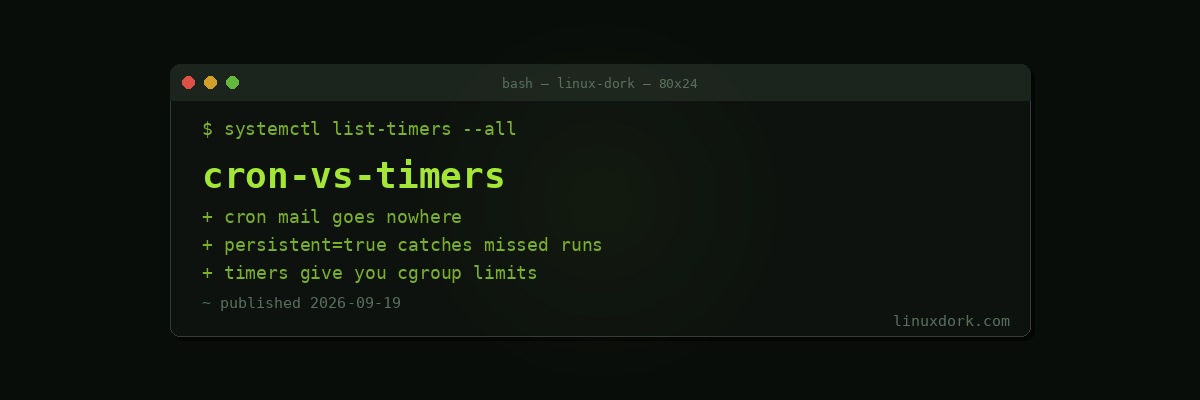
cron vs systemd Timers: Which to Use
Both run things on a schedule. Our cron guide and systemd timers guide cover each; this is the comparison.
The short version: timers are better for anything you care about, and cron is faster to write for anything you do not.
The real difference is not the schedule syntax
Both express “every day at 3am” perfectly well. The difference is what happens around the execution.
A cron job is a command line. When it runs, cron executes it with a minimal environment and mails the output to the user, which on a modern server means it goes nowhere because no local mail is configured.
A timer activates a service unit. That service gets everything systemd provides: journal logging, status, dependency ordering, resource limits, sandboxing, and failure handling.
That is the whole argument, and it is mostly about observability.
The silent failure problem
This is the practical case against cron.
0 3 * * * /usr/local/bin/backup.shThe script fails. The error goes to stdout or stderr, cron mails it to root, no MTA is configured, the mail is discarded. Six months later you need the backup.
Nothing alerts you. Nothing is logged. crontab -l shows the job is scheduled, because it is, and it has been failing every night since March.
With a timer:
systemctl status backup.service
journalctl -u backup.service --since "1 week ago"
systemctl list-timers
The failure is in the journal with its exit code and output, the unit shows failed, and OnFailure= can trigger a notification.
You can get most of this from cron by redirecting output and checking exit codes by hand. The point is that timers give it to you without remembering to.
The environment problem
The other classic cron failure:
0 3 * * * backup.shWorks in your shell, fails in cron. The reason is that cron runs with a nearly empty environment and a PATH of roughly /usr/bin:/bin. Your ~/.bashrc is not read. /usr/local/bin is not searched.
PATH=/usr/local/sbin:/usr/local/bin:/usr/sbin:/usr/bin:/sbin:/bin
0 3 * * * /usr/local/bin/backup.sh >> /var/log/backup.log 2>&1
Absolute paths, explicit PATH, redirected output. Our environment variables guide covers why the shell you test in is not the environment cron provides.
Timers have the same property, and the difference is that a unit file makes the environment explicit rather than inherited by accident:
[Service]
Environment=PATH=/usr/local/bin:/usr/bin:/bin
EnvironmentFile=/etc/myapp/env
What timers do that cron cannot
Persistent
[Timer]
OnCalendar=daily
Persistent=true
If the machine was off when the job should have run, it runs after boot. On a laptop this is the difference between backups happening and backups happening only on days you left it on.
cron has no equivalent. anacron exists to fill the gap and is a separate tool with its own configuration.
Randomized delay
RandomizedDelaySec=30mFifty servers with the same cron entry hit your backup target at 03:00:00 exactly. A random offset spreads the load.
Monotonic timers
OnBootSec=15min
OnUnitActiveSec=6h
“Fifteen minutes after boot, then every six hours since the last run.” cron expresses wall-clock times only, so “every six hours” means 00:00, 06:00, 12:00, 18:00 regardless of when the machine started.
Dependencies
[Unit]
After=network-online.target postgresql.service
Requires=postgresql.service
A cron job at 03:00 runs at 03:00 whether or not the database is up. A service can wait for it, or refuse to run.
Resource limits and sandboxing
Everything in our service hardening guide applies:
[Service]
MemoryMax=1G
CPUQuota=50%
Nice=19
IOSchedulingClass=idle
PrivateTmp=yes
ProtectSystem=strict
ReadWritePaths=/var/backups
A backup job confined to half a CPU, at idle I/O priority, with a read-only filesystem except the backup target. cron offers nice and nothing else.
Overlap prevention
If a timer fires while the previous run is still going, systemd does not start a second one. Two cron jobs overlapping is a classic cause of corrupted output, and the usual workaround is a lockfile you have to remember to write:
# the cron workaround
0 * * * * flock -n /tmp/job.lock /usr/local/bin/job.sh
The cost: two files instead of one line
# /etc/systemd/system/backup.service
[Unit]
Description=Nightly backup

[Service]
Type=oneshot
ExecStart=/usr/local/bin/backup.sh
# /etc/systemd/system/backup.timer
[Unit]
Description=Run backup nightly
[Timer]
OnCalendar=*-*-* 03:00:00
Persistent=true
RandomizedDelaySec=1h
[Install]
WantedBy=timers.targetsudo systemctl daemon-reload
sudo systemctl enable --now backup.timer
systemctl list-timers backup.timerNote you enable the timer, not the service. Enabling the service would start it immediately at boot, which is not what you want.
Our systemd timer builder generates both files, and the crontab generator covers the other side.
Checking the schedule
# does this expression mean what I think
systemd-analyze calendar "Mon *-*-* 03:00:00"
systemd-analyze calendar "*-*-01 04:00:00" --iterations=5

# what is scheduled and when it last ran
systemctl list-timers --all
systemd-analyze calendar is genuinely useful and has no cron equivalent. Verifying that *-*-01 means the first of the month before deploying it beats finding out in five weeks.
When cron is right
No systemd. Alpine, some BSDs, minimal containers. cron works everywhere.
Portability. A crontab moves between Unix systems unchanged.
Trivial jobs where failure does not matter. Rotating a scratch file, touching a heartbeat. Two unit files is disproportionate.
A machine you do not manage. Adding a line to a crontab is less intrusive than installing units on someone else’s server.
User-level scheduling on a shared system. crontab -e needs no privilege. systemd user timers exist and require lingering enabled for them to run when you are not logged in:
loginctl enable-linger username
systemctl --user enable --now mytimer.timer
Choosing
| cron | timer | |
|---|---|---|
| Setup | One line | Two files |
| Logging | Mail nobody reads | Journal |
| Missed runs | No | Persistent=true |
| Dependencies | No | Yes |
| Resource limits | nice only | Full cgroups |
| Overlap prevention | flock by hand | Built in |
| Next run visible | No | list-timers |
| Works without systemd | Yes | No |
The rule that holds up: if you would be upset that it silently stopped working, use a timer. Backups, certificate renewal, database maintenance, anything with a deadline.
For everything else, cron is one line and you already know the syntax.
Frequently Asked Questions
What is the main advantage of systemd timers over cron?
Timers separate scheduling from execution, so the work runs as a normal systemd service with logging, status, dependencies, resource limits, and sandboxing. A cron job is a command line with almost none of that, and its output goes to mail that nobody reads.
Why do my cron jobs fail when the same command works in my shell?
cron runs with a minimal environment and a very short PATH, typically just /usr/bin and /bin. Commands in /usr/local/bin are not found, and variables set in your shell profile do not exist because cron does not read it. Use absolute paths and set what you need explicitly.
What does Persistent=true do in a timer?
It runs a missed job after the machine comes back up. If the system was off when a daily timer should have fired, it fires shortly after boot instead of waiting for the next occurrence. cron has no equivalent, which is why anacron exists separately.
Is RandomizedDelaySec worth setting?
Yes on anything where several machines run the same job. Without it every server hits your backup target or package mirror at exactly the same second, producing an avoidable load spike. A delay of a few minutes spreads it out at no real cost.
How do I see when a timer last ran and when it runs next?
Run systemctl list-timers, which shows the next elapse, the last trigger time, and the unit each timer activates. There is no cron equivalent, which is one of the more practical differences in day to day use.
When is cron still the right choice?
On systems without systemd, for a trivial job on a machine you do not manage carefully, and when portability across Unix systems matters. A one-line crontab entry is also genuinely faster to write than two unit files when the task is simple and failure is unimportant.